Presets for Maono
by James Gaming Show
Unofficial scene files for Maono Link
Sound like the podcaststreambroadcast you're watching.
Pick your mic, pick a voice, download one small file. Import it in Maono Link and your mic has a tuned broadcast scene in seconds. Fine-tune it there whenever you like.
6Voice presets
6Wireless mics
0Sign-ups
Step 01
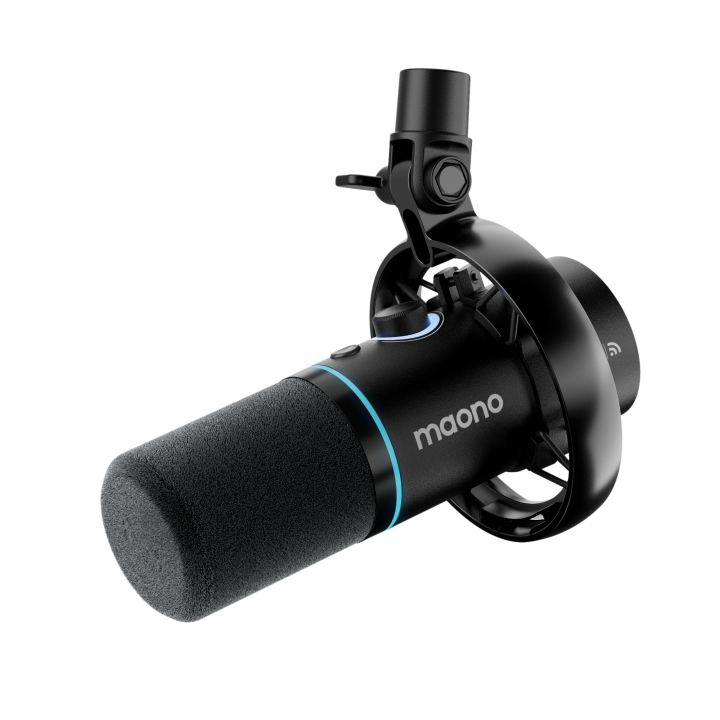
Choose your mic
Each mic needs its own file format. The PD200W format is confirmed; the others share the same layout in Maono Link but haven't been tried yet.
Mic not listed, or the import fails?
In Maono Link, open Scenes → More → Export and save any scene. Load that file here and the presets will be written in exactly the same format as your mic's own files.
or drop it here.
Step 02
Choose your voice
Tuned for streaming and gaming. The line on each card is the shape of the EQ: up adds, down removes.
Step 03
Import and sound great
Import in Maono Link
- Connect your mic and open Maono Link.
- Go to Scenes and click Import in the top right.
- Pick the
.cfgyou downloaded. It appears under Configuration. - Want it different? Drag the EQ points in Maono Link to make it yours.
Get the bass from the mic
- Speak 5–10 cm from the grille. Closer adds bass.
- Aim at the corner of your mouth to avoid pops.
- Set gain so speech peaks around −12 to −6 dB.
- Keep Reverberation off for streams and voice chat.
Made by James Gaming Show
Watch the walkthrough of these presets and more gaming and streaming setup videos on the channel.